Ever since I got my Macbook, I’ve used Parallels with my Book Camp partition to run Windows side-by-side with OSX. I had heard that there was this other option of using VMWare Fusion but never really bothered to look into it. This was true until this weekend. It had been a couple of days since I recently upgraded to 4gb of ram. I actually had not started up Parallels in awhile but I wanted to test something in the dreaded Internet Explorer so I started up Parallels.

I was presented with the following message:

Windows could not start because the following file is missing or corrupt:
system32hal.dll.
Please re-install a copy of the above file.

Uh, what?

Must be a fluke! So, let’s try this again.

Windows could not start because the following file is missing or corrupt:
system32ntoskrnl.dll.
Please re-install a copy of the above file.

Uh-oh. This doesn’t look good.

After googling a bit, it turns out Parallels does some pretty bad things like modify essential Windows boot up files to get Boot Camp to work with Parallels. They even modify boot.ini! So, I think what happened to me was that Parallels crashed at some point and corrupted/deleted these essential Windows files rendering my Windows partition unbootable.

This is what you call a deal breaker. If your software’s purpose is to allow other operating systems to run, rendering said operating system unusable is a big no no.

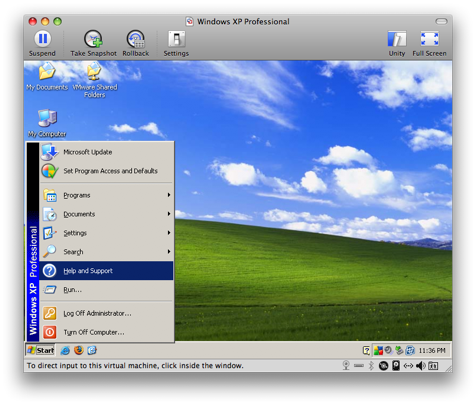
fusion-1
So, I’ve been using Fusion for a day or two now, feature for feature pretty much has everything Parallels had. Even the user interface is fairly similar, they just call things a little different. For example, what Parallels calls Coherence, Fusion calls Unity. Performance is about the same but I don’t really play games or anything other than startup Internet Explorer when running Windows. Best of all, Fusion doesn’t seem to do terrible things like modify Windows boot up files. Fusion beats Parallels hands down.

Bookmark and Share
Posted in reviews at February 9th, 2009. Comments.

I’ve had my Macbook for a little over a year now. However, I just recently found out Leopard comes with apache (apache2 to be specific) already installed. To verify this is true, open up Terminal and type

>> apachectl -V
Server version: Apache/2.2.9 (Unix)
Server built:   Sep 19 2008 10:58:54
Server's Module Magic Number: 20051115:15
Server loaded:  APR 1.2.7, APR-Util 1.2.7
Compiled using: APR 1.2.7, APR-Util 1.2.7
Architecture:   64-bit
Server MPM:     Prefork
  threaded:     no
    forked:     yes (variable process count)
Server compiled with....
 -D APACHE_MPM_DIR="server/mpm/prefork"
 -D APR_HAS_SENDFILE
 -D APR_HAS_MMAP
 -D APR_HAVE_IPV6 (IPv4-mapped addresses enabled)
 -D APR_USE_FLOCK_SERIALIZE
 -D APR_USE_PTHREAD_SERIALIZE
 -D SINGLE_LISTEN_UNSERIALIZED_ACCEPT
 -D APR_HAS_OTHER_CHILD
 -D AP_HAVE_RELIABLE_PIPED_LOGS
 -D DYNAMIC_MODULE_LIMIT=128
 -D HTTPD_ROOT="/usr"
 -D SUEXEC_BIN="/usr/bin/suexec"
 -D DEFAULT_PIDLOG="/private/var/run/httpd.pid"
 -D DEFAULT_SCOREBOARD="logs/apache_runtime_status"
 -D DEFAULT_LOCKFILE="/private/var/run/accept.lock"
 -D DEFAULT_ERRORLOG="logs/error_log"
 -D AP_TYPES_CONFIG_FILE="/private/etc/apache2/mime.types"
 -D SERVER_CONFIG_FILE="/private/etc/apache2/httpd.conf"

To start up apache, you can do it a couple of ways.

Type sudo apachectl -k start

or

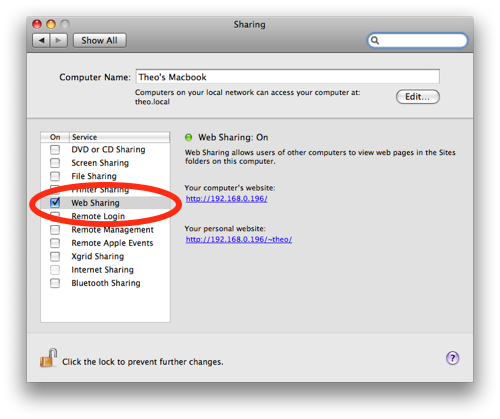
web-sharing

  1. Go to System Preferences
  2. Click on Sharing
  3. Check the box that says Web Sharing

You can go to http://localhost or the URL provided in the Web Sharing screen to confirm apache is running and is able to serve up requests.

There is also a ~/Sites directory in your home folder. Apache is already setup to serve up files from this directory under http://localhost/~[username] where [username] is your user account name. Any files here will be render for example ~/Sites/index.html is accessible from the browser via http://localhost/~[username]/index.html.

One note to get this to work. Out of the box, all requests to /Sites result in a Forbidden 403 error. To resolve this issue, modify the conf file specified above as SERVER_CONFIG_FILE (/private/etc/apache2/httpd.conf in my case) from

<Directory />
    Options FollowSymLinks
    AllowOverride None
    Order deny,allow
    Deny from all
</Directory>

to

<Directory />
    Options FollowSymLinks
    AllowOverride None
    Order deny,allow
    Allow from all
</Directory>

Restart apache (sudo apachectl -k restart) and try going to http://localhost/~[username] again.

Bookmark and Share
Posted in tutorials at January 28th, 2009. Comments.

red_envelopes

May your pockets be filled with little red envelopes. :)

Bookmark and Share
Posted in personal at January 26th, 2009. Comments.

The longer I use iPhoto, the more I hate it. When I initially started using it, I would import photos but choose not to copy the originals to the iPhoto Library. In the past year or so, I’ve started to just allow iPhoto to copy the originals to the iPhoto Library. So now, I ended up with photos scattered all over the place. This was a pain to maintain and figure out where my photos were.

I decided that I want all photos to be in one place and if I was going to use iPhoto, I’m going to import by copying the originals to the iPhoto Library. Before I could get all of this to happen, I had to backup all of existing photos that were not in the iPhoto Library to an external hard drive. Planning on importing these photos over again from the external hard drive, I then deleted all of these photos through Finder. Going back into iPhoto, I still saw the thumbnails for the photos I just deleted. If I attempt to open any of them though, it complained it couldn’t find the original. What a mess. There doesn’t seem to be a way to refresh your iPhoto Library and it would remove photos it doesn’t have references to any more.

I figure the easiest way to get my iPhoto Library setup the way I want it is to start from scratch. So I went under my Pictures directory and renamed iPhoto Library to iPhoto Library.original. Opening up iPhoto again, you get prompted to search for your Library or create a new one. I choose create a new iPhoto Library and now I can begin importing my photos.

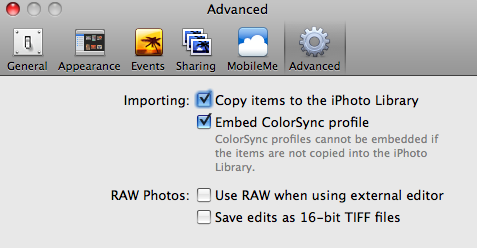
iphoto-prefs

After making sure I have the option to copy items to iPhoto Library when importing, I can now import photos from my external hard drive.

Great! Now I have all of my scattered photos in iPhoto Library. But what about the photos I had imported to the original iPhoto Library ( the ones under iPhoto Library.original)? Well, there didn’t seem to be an easy way to import non-broken originals form one iPhoto Library to another from the GUI so I went to the command line.

All of the original photos that are imported to an iPhoto Library are under a folder called Originals. However, due to the way iPhoto manages the photos, this also includes the broken files that reference the photos I had deleted. Basically I wanted to get rid of all of these broken references before importing all of the photos from my original iPhoto Library to the new one I am creating. Here’s how I did it.

  1. Open up Terminal
  2. Change directory to the original iPhoto Library’s Originals directory (~/Pictures/iPhoto Library.original/Originals)
  3. The broken references aren’t actually symbolic links. They seem to be using extended file attributes to denote where the original file actually is (see xattr).  Since we deleted the actual photos, to identify these files type:
    find . -size 0
    

    to get a list of all of the 0 byte files.

  4. To remove them:
    find . -name "*.jpg" -size 0 -exec rm {}  \;
    

    or if you want to just move them elsewhere:

    find . -name "*.jpg" -size 0 -exec mv {} $dest \;
    

    where $dest is the path to where you want to move the files

  5. To delete all of the empty directories (that represent your events) for clean up purposes:
    find . -depth -type d -empty -exec rmdir {} \;

Now your original iPhoto Library should only contain photos that were imported by copying the originals to the iPhoto Library.

To finish importing everything, open iPhoto, choosing your new iPhoto Library and import the Originals directory from the original iPhoto Library (~/Pictures/iPhoto Library.originals/Originals). You might have to copy this folder someplace else since the Import menu doesn’t allow you to specify going into the iPhoto Library.originals package.

After about 5 hours of battling with iPhoto, I think I finally have all of my photos reimported to a fresh iPhoto Library with no duplicates and broken file references. Having to do all of this really makes me think to just switch to something else. How do you guys feel about iPhoto? What are some good alternatives? Picasa anyone?

Bookmark and Share
Posted in tutorials at January 25th, 2009. Comments.

If you’ve been following my blog for awhile, you might have noticed I moved this blog from blog.notedpath.com to theodorenguyen-cao.com as it was more fitting domain. I originally just registered the domain, added the DNS record, and updated my apache config to have theodorenguyen-cao.com to be an server alias to blog.notedpath.com.

This allowed requests to blog.notedpath.com/* and theodorenguyen-cao/* respond with the same content. I thought I was done. I discovered this wasn’t the case when I saw blog.notedpath.com as a direct traffic source in my google analytics for theodorenguyen-cao.com. To fix the screwed up analytics, I needed to make it so that all requests that go to blog.notedpath.com are permanently redirected (301) to theodorenguyen-cao.com.

To do this I had to apply an Apache mod_alias redirect directive as such:

<VirtualHost *:80>
        VirtualDocumentRoot /var/www/blog
        ServerName blog.notedpath.com
        Redirect permanent / http://www.theodorenguyen-cao.com/
        ErrorLog /var/log/apache2/wp-error.log
        TransferLog /var/log/apache2/wp-access.log
</VirtualHost>

The virtual host for theodorenguyen-cao.com looks like:

<VirtualHost *:80>
    VirtualDocumentRoot /var/www/blog
    ServerName www.theodorenguyen-cao.com
    ServerAlias theodorenguyen-cao.com
    CustomLog /var/log/apache2/theodorenguyen-cao.com_access.log Combined
    ErrorLog /var/log/apache2/theodorenguyen-cao_error.log
</VirtualHost>

At first I thought this would only fix the simple case of blog.notedpath.com redirecting to theodorenguyen-cao.com, but blog.notepath.com/foobar not being translated to theodorenguyen-cao.com/foobar. However, this does exactly what I want. All blog.notedpath.com URLs will be replaced with theodorenguyen-cao.com URLs. Old bookmarks will simply redirect to a theodorenguyen-cao.com URL and not 404.

Success!

I’m still waiting to see if Google will update the search result links that point to blog.notedpath.com to be theodorenguyen-cao.com URLs.

Bookmark and Share
Posted in geekery at January 21st, 2009. Comments.